Getting started
From installing to watching every Mac on one screen, in about five minutes. Then a guide to everything in the dashboard, Fuse Box, and in the client, Fuse Box Client.
Two apps, one job each
The Mac you look at runs the dashboard. Every Mac you want to watch runs the client.
Fuse Box
The dashboard, also called the host. Install it on the one Mac where you want to see everything. It shows every paired Mac live, accepts pairing requests, and can record history.
Fuse Box Client
The client. Install it on each Mac you want to watch. It lives in the menu bar, with no window of its own, and reports that Mac's stats to the dashboard.
| You need | Details |
|---|---|
| macOS | macOS 15 (Sequoia) or later on every Mac |
| Network | The Macs must reach each other, usually on the same home or office network. The dashboard listens on TCP port 47820; clients connect out to it. |
| Account | None. Your Macs talk only to each other, with nothing in between. |
| Price | Both apps are free, with up to 2 Macs paired to the dashboard. Pro pairs any number. |
Only one Mac? Install both apps on it. The dashboard always shows its own Mac, and pairing the client on the same Mac is a good way to try everything before setting up the others.
From install to dashboard
Install the apps
Get Fuse Box on the Mac you'll look at, and Fuse Box Client on each Mac you want to watch, from the Mac App Store. Prefer not to use the App Store? There are direct downloads too.
Open the dashboard
Open Fuse Box. When macOS asks:
Accept incoming network connections? Choose Allow, so clients can reach it.
Keychain access for its identity key: choose Always Allow.
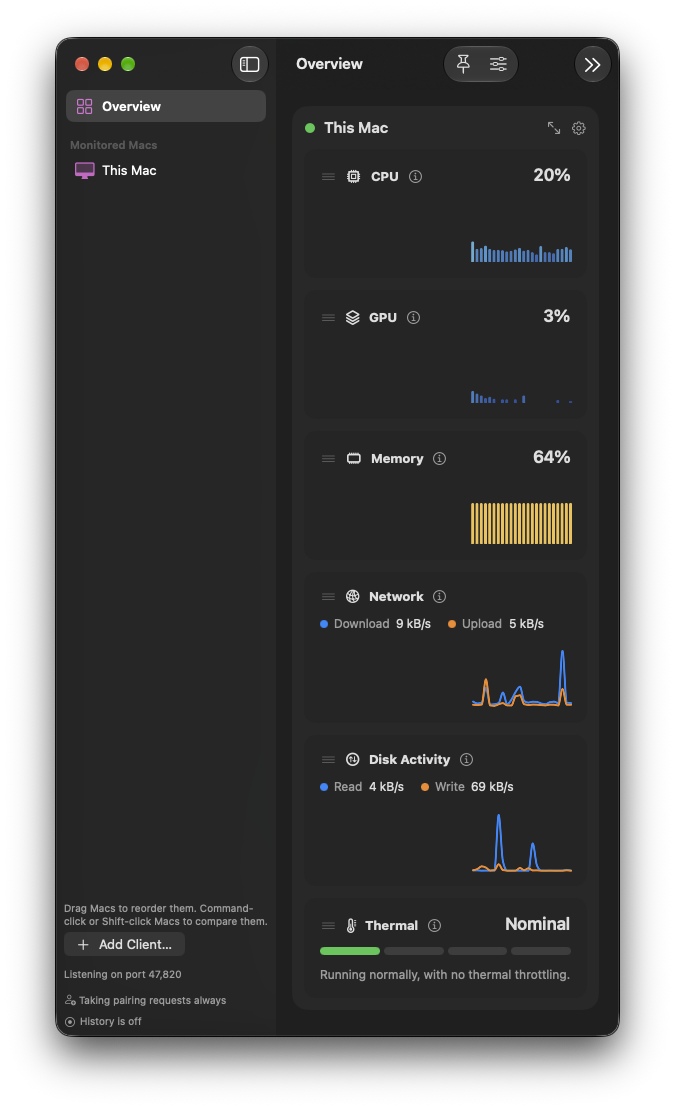
The bottom of the sidebar should say "Listening on port 47,820". Your own Mac already appears in the sidebar.
Start taking pairing requests
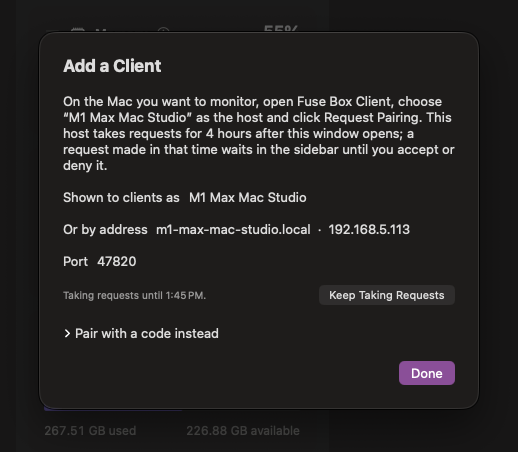
Click Add Client…. It shows the name clients will see the dashboard under, and its address, and starts taking pairing requests for the time set in Settings › Clients.
Ask to pair from the client
On a Mac you want to watch, open Fuse Box Client and click its icon in the menu bar. If macOS asks to let it find devices on your local network, choose Allow; for Keychain access, Always Allow.
Under Host, choose the dashboard's Mac (if there's only one, it's already chosen), then click Request Pairing. The client shows a check phrase of three words and waits.
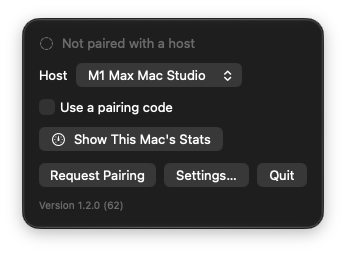
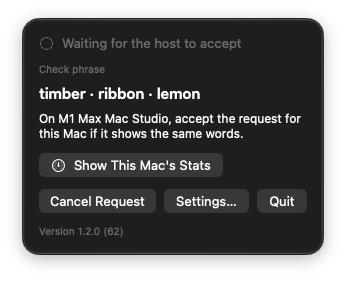
Your words will be different. What matters is that both Macs show the same ones.
Accept on the dashboard
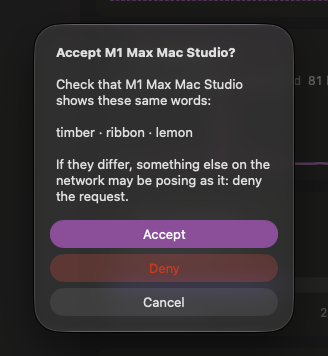
Back on the dashboard, the request appears under Pairing Requests at the top of the sidebar (the menu-bar icon shows a count too). Click Accept… and check that it shows the same three words as the client. If they match, accept.
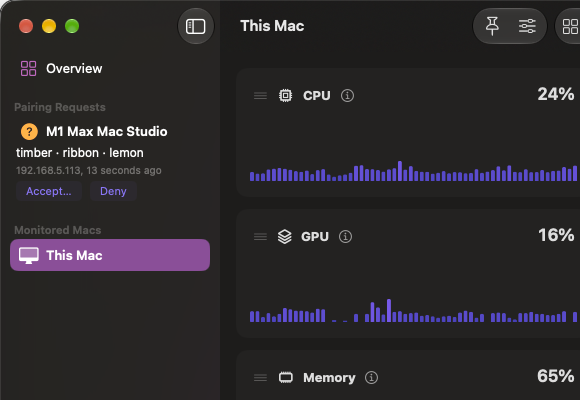
Confirm on the client
The client says the dashboard accepted it and shows the words again. Click Yes, Pair if they're the ones the dashboard showed. Within a few seconds the Mac appears in the dashboard's sidebar with a green dot, and its charts start moving.
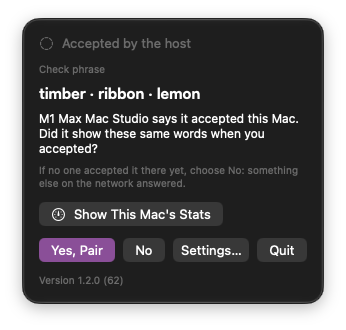
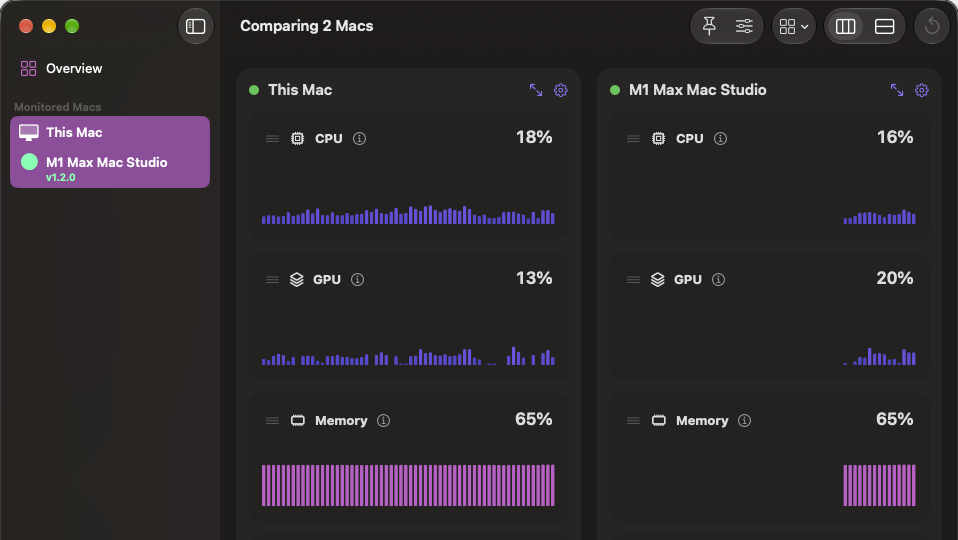
Words don't match? Deny the request. Something else on the network may be posing as one of your Macs. Matching words are what make pairing safe; here's why.
Other ways to pair
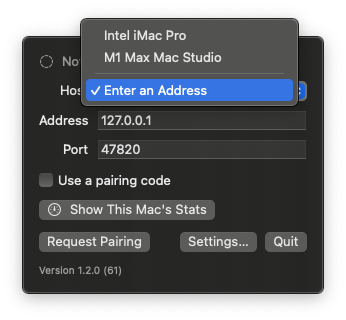
- The dashboard isn't listed on the client (for example, it's on another network): choose Enter an Address under Host and type the dashboard Mac's name or IP address, shown in Add Client…, with port 47820.
- With a code: in Add Client…, open Pair with a code instead. On the client, turn on Use a pairing code, type the code and click Pair. The code works once, while that window is open.
- No rush: a request waits as long as the client keeps asking, up to a day, so you can accept it later.
Then, a few things worth doing
- Turn on Open at Login on each client (its menu-bar icon › Settings…), so watched Macs report after a restart. The dashboard has the same switch in Settings › General.
- Turn on history if you want to look back later: click History is off at the bottom of the dashboard's sidebar.
- Close the dashboard's window whenever you like. It keeps running, and recording, from the menu bar.
Fuse Box, the dashboard
Everything in the dashboard, and where to find it.
The sidebar
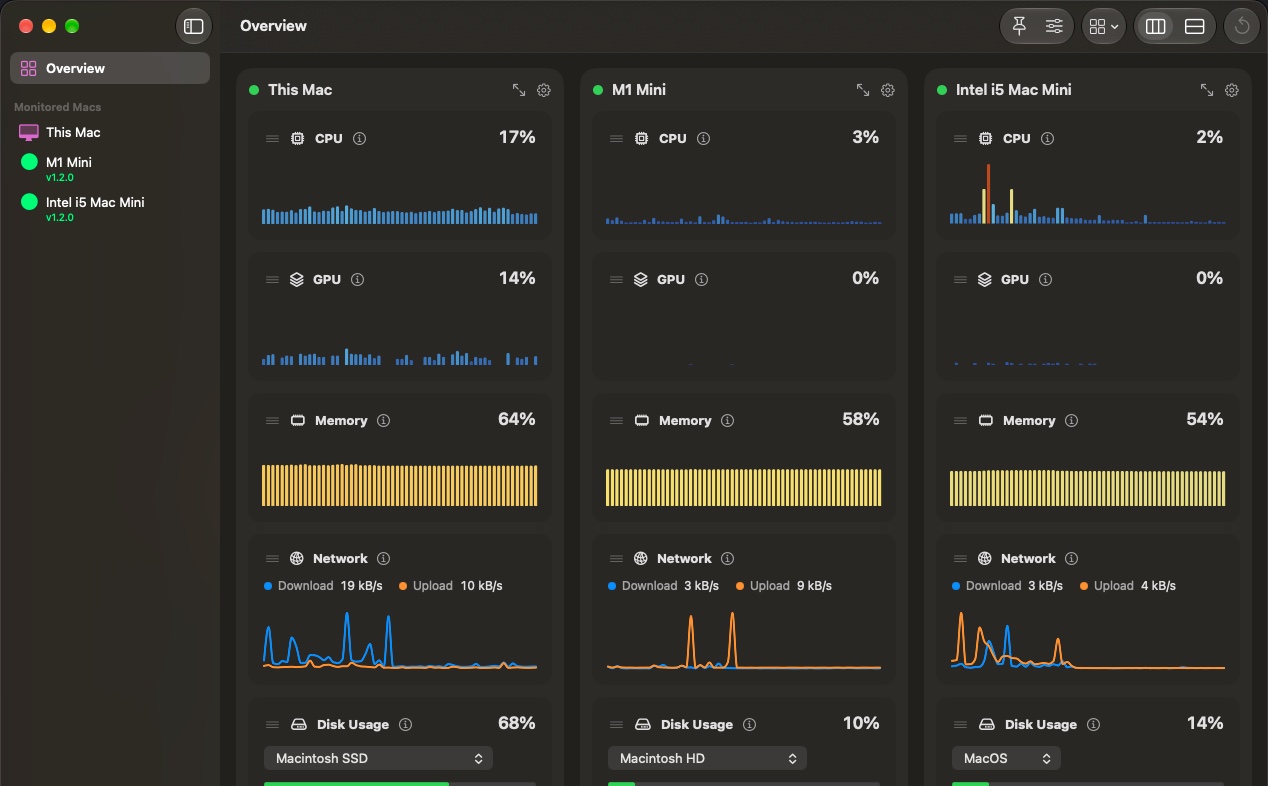
- Overview at the top shows every Mac side by side. Click a Mac below it for a full-size view of just that Mac.
- Each Mac has a status dot: green when it's reporting, Not responding when it goes quiet (asleep, for example), and Offline once it's dropped. It reconnects on its own; offline Macs stay listed but make room in the Overview.
- Under each name is its client's version: green when it matches the dashboard's, orange when it's older and worth updating. Hover over a Mac to see what it collects and how often.
- Drag Macs up and down to change their order. The Overview follows.
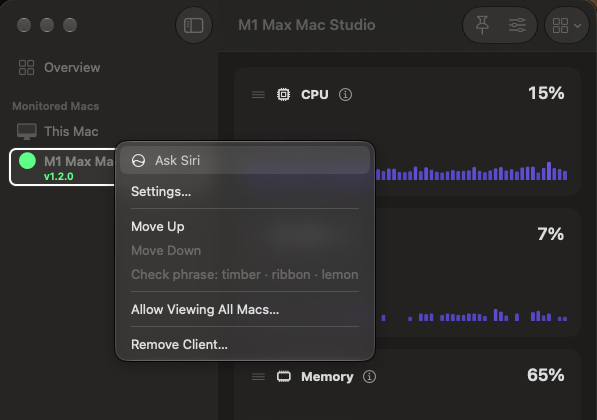
- Right-click a Mac for Settings… (the same as its gear), Move Up, Move Down, its check phrase, Allow Viewing All Macs… (see Viewers) and Remove Client. A removed Mac can't connect again until it's paired anew.
- At the bottom: whether the dashboard is listening, whether it's taking pairing requests and until when, and whether history is on.
Comparing Macs
- Command-click or Shift-click two or more Macs in the sidebar to see just those together.
- In the toolbar, By Mac gives each Mac its own panel. By Module puts the same metric side by side, all the CPUs, then all the memory, so Macs are easy to compare. The same choice works on the Overview.

The toolbar
| Button | What it does |
|---|---|
| Modules (the grid) | Shows or hides cards: CPU, GPU, memory, network, disks, battery and thermal. With one Mac selected it's for that Mac; in the Overview or a comparison, for every Mac at once. It only changes what's shown: the dashboard keeps collecting everything. |
| Display Options (the sliders) | Line or bar charts, the Color Scheme (Standard, Classic, Ocean, Sunset, Forest, Violet, High Contrast) and the layout: Vertical puts Macs side by side in columns, scrolling sideways when there are many; Horizontal stacks them. |
| By Mac / By Module | How Macs are grouped, as above. |
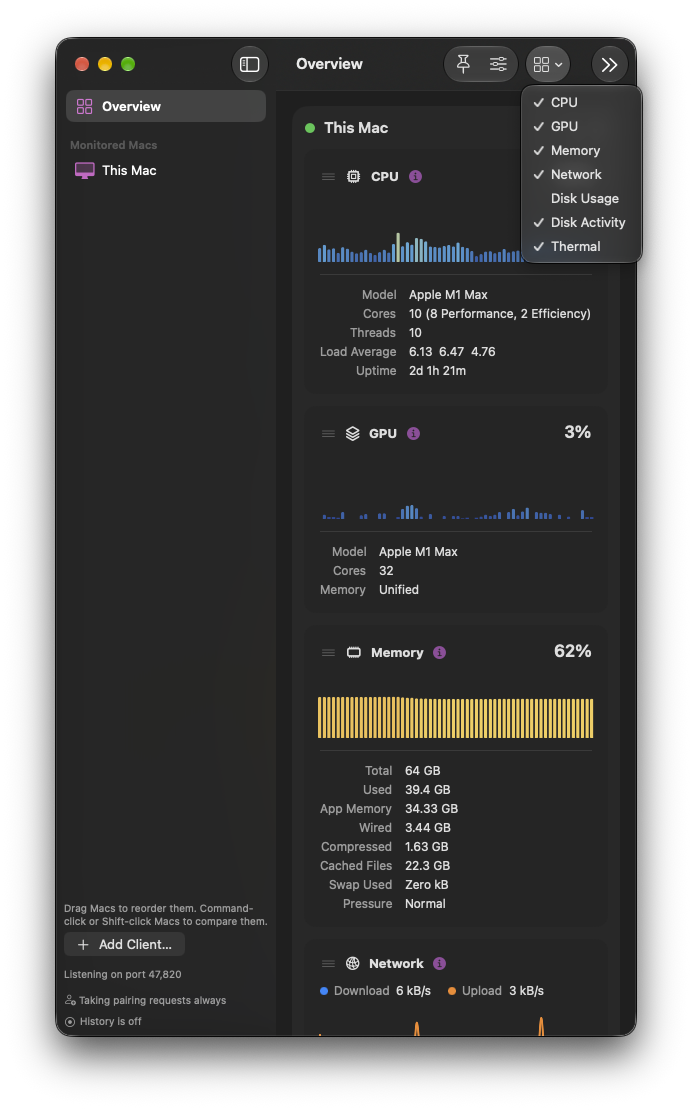

Each Mac's settings
The gear on a Mac's panel sets which of its cards are shown, how often it samples and whether it appears in the Overview. For a client Mac, it also sets whether its history is recorded.

Settings (⌘,)
| Tab | What's there |
|---|---|
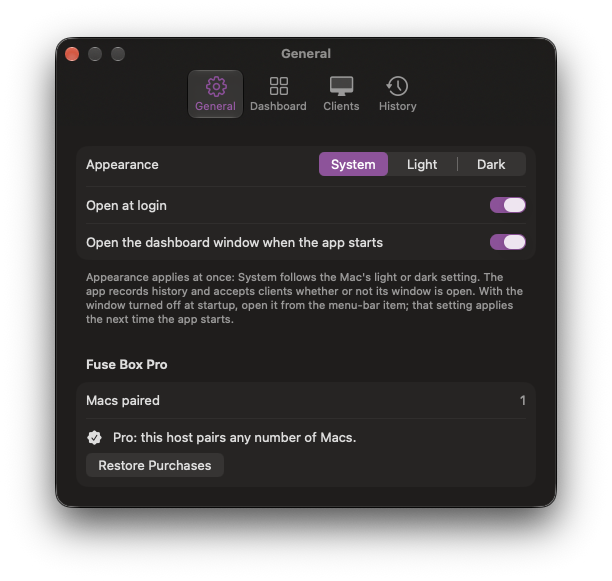
| General | Appearance (System, Light or Dark), Open at Login, whether the window opens at startup or the app starts quietly in the menu bar, and Pro: how many Macs are paired, Get Pro, Restore Purchases. |
| Dashboard | How the dashboard lays out its cards, including Keep modules at their minimum width, which sizes the window a column at a time as Macs come and go. |
| Clients | Accept pairing requests: Off, 15 minutes, 1, 4 or 8 hours, or Always. A time turns itself off when it runs out. Also Clear Denied Requests and Show IP addresses to Viewers. |
| History | Record history, how often to store a row, how many days to keep, an optional size limit, and Export…. |
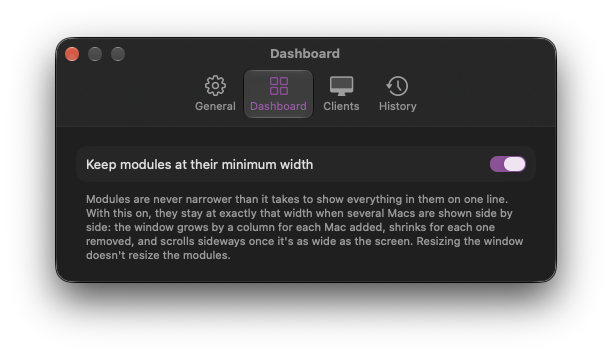
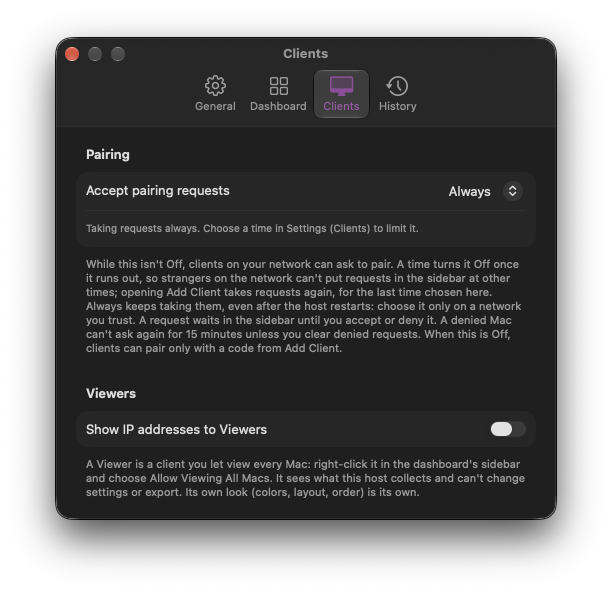
History
- Off until you turn it on: Settings › History, or click History is off at the bottom of the sidebar.
- It stores one row per Mac per interval (10 seconds by default): averages, plus the peak for CPU, GPU and network. Connects, disconnects and other events are noted too.
- One file per day, kept 30 days unless you choose otherwise. About 16 MB a day for 10 Macs.
- Export… writes CSV or JSON for the Macs and the exact time range you pick, with quick ranges such as Last Hour and Today.
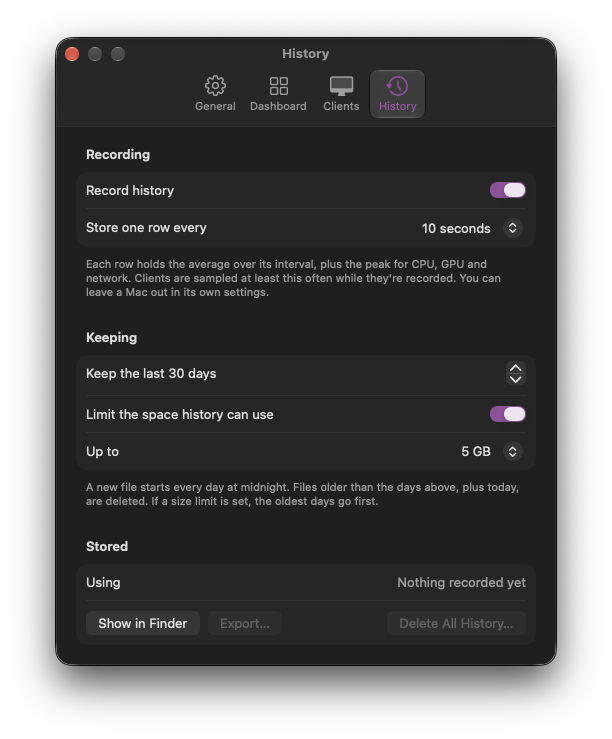

Viewers
A Viewer is a client Mac you let see the whole dashboard, for viewing only: handy for a second desk or a family member's Mac.
- Right-click the Mac in the sidebar › Allow Viewing All Macs…. An eye appears beside it. Stop Viewing All Macs in the same menu ends it at once.
- A Viewer can't change anything the dashboard decides (sampling, history, pairing), export, or remove Macs, and it keeps nothing on disk.
- IP addresses stay hidden from Viewers unless you turn on Show IP addresses to Viewers in Settings › Clients.
Running in the background
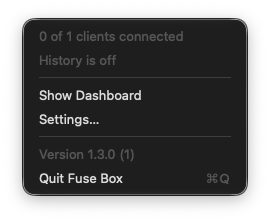
Closing the window doesn't quit the dashboard: it keeps listening and recording from its menu-bar icon, which also shows its version and any waiting pairing requests. Quit it from that menu or with ⌘Q.
Fuse Box Client, on each Mac you watch
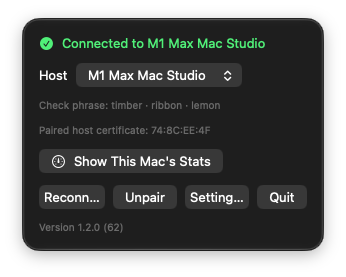
The client has no window of its own. Everything is in its menu-bar icon: click it to see whether it's connected, and to change anything.
In the menu-bar window
| Item | What it does |
|---|---|
| Status | At the top: connected, connecting, waiting for the dashboard to accept, or why it can't connect, in plain words. See If something's wrong. |
| Host | The dashboards found on your network, by their Mac's name. Enter an Address is for one it can't see, such as on another network. |
| Request Pairing | Asks the chosen dashboard to pair, and shows the check phrase. Cancel Request takes it back. |
| Use a pairing code | Pair by typing the code from the dashboard's Pair with a code instead, then Pair. |
| Yes, Pair / No | After the dashboard accepts: confirm if the words match what the dashboard showed. If the client says it was accepted before anyone accepted it on the dashboard, click No. |
| Reconnect | Once paired: try the connection again now, instead of waiting for the client to retry by itself. |
| Unpair | Forgets the dashboard on this Mac. To pair it again later, also Remove Client on the dashboard. |
| Show This Mac's Stats | Opens a window with this Mac's own charts. See below. |
| Show All Macs | Only on a Viewer: opens the whole dashboard, for viewing. |
| Settings… | Open at Login, so this Mac reports after a restart. |
| Quit | Stops reporting. The Mac shows as Offline on the dashboard until the client opens again. |
Once paired, the client shows its check phrase and the version at the bottom. It keeps reporting while you work, and reconnects by itself after sleep or a network change, even if the dashboard's address changes.
This Mac's own stats
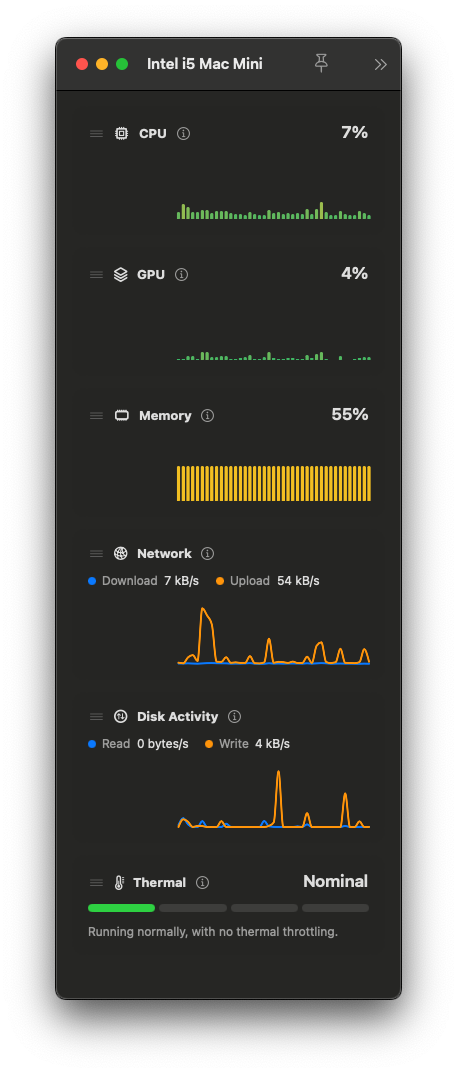
Show This Mac's Stats opens a window with this Mac's cards, the same as the dashboard shows them full size. It works whether or not the Mac is paired.
- Its cards (the Modules menu), sampling interval (Modules › More Settings…) and look (Display Options, including Always on Top) are its own, and don't change what the dashboard receives.
- It measures only while the window is open. Closing it stops it.
- While it's open, the client has a Dock icon, so you can find it with Command-Tab.
What the client sends
CPU, GPU, memory, network, disks, battery and thermal state, at the interval the dashboard sets for this Mac (every 10 seconds unless you change it). Only to the dashboard it's paired with, encrypted, straight across your network. Nothing goes anywhere else, and nothing about you is collected.
More than two Macs
The dashboard pairs up to 2 clients for free. Fuse Box Pro, a one-time in-app purchase, lets it pair any number. Everything else works the same either way, and the client is always free.
- Buy it in the dashboard: Settings › General › Get Pro, or from the Get Pro… button when a third Mac asks to pair. Restore Purchases is there too.
- Shared with your family through Family Sharing.
- Macs already paired always stay paired.
- Pro is only available in the App Store version; direct downloads stay at 2 Macs.
Quick fixes
The client's menu-bar window says what's wrong. The usual fixes:
| The client says | Try this |
|---|---|
| "didn't answer" or "isn't running" | Make sure the dashboard's Mac is awake, Fuse Box is open on it, and both Macs are on the same network. Choosing Enter an Address with the dashboard's IP address (shown in Add Client…) rules out trouble finding it by name. |
| "This Mac isn't allowed to use the local network" | Turn on Fuse Box Client in System Settings › Privacy & Security › Local Network. |
| The same, but the client isn't in that list | A macOS 27 bug can refuse an app without asking. The fix takes a minute. |
| The pairing request never shows up | On the dashboard, click Add Client… again: requests are taken only for a set time. A Mac you denied is turned away for 15 minutes unless you click Clear Denied Requests. |
More on the Support page, including starting fresh. To remove the apps completely, with their settings, pairings and history, use Fuse Box Uninstaller. Still stuck? Write to support@blinken-labs.com.